Getting started
Create an account
Registration takes two minutes, but one of the choices can't be undone without starting over.
You need a Shelly account to use the app. The account is free and ties together your devices, rooms and scenes.
Before you start
All you need is an email address you can access right now — registration sends a confirmation.
You don't need a device to create the account. The requirements on your network only come up when you add your first Shelly, and they're covered in Adding a device.
How to do it
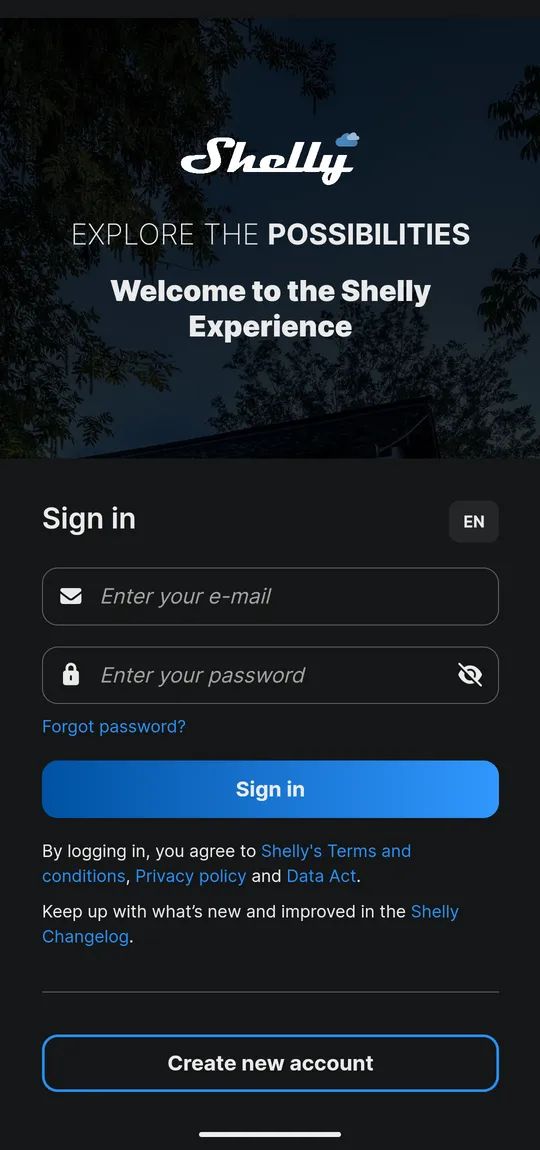
- Install Shelly Smart Control from the App Store or Google Play. Check that the publisher is Shelly Europe EOOD.
- Choose Create a new account.
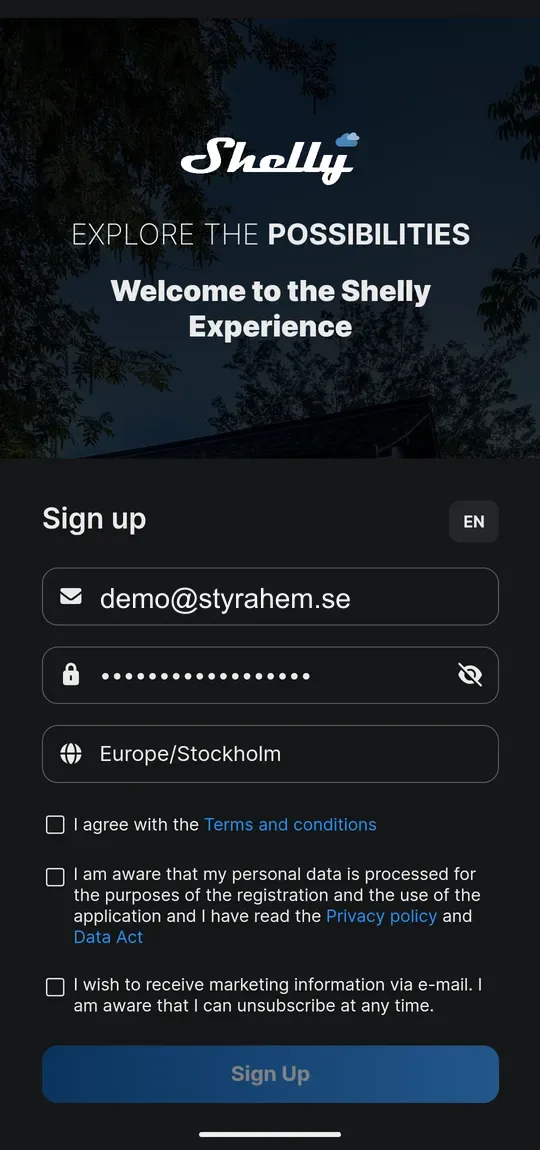
- Enter your email and password.
- Choose your region — a time zone you pick from a list, not free text. Read the next section first.
- Accept the terms and the privacy policy.
- Confirm via the link in the email.
The region choice is the one that matters
The "region" field is really a time zone picker. You start typing — Stockholm, say — and pick the matching entry (Europe/Stockholm) from the list that drops down. Typing the country name alone won't do; the form rejects it until you've selected an actual time zone.
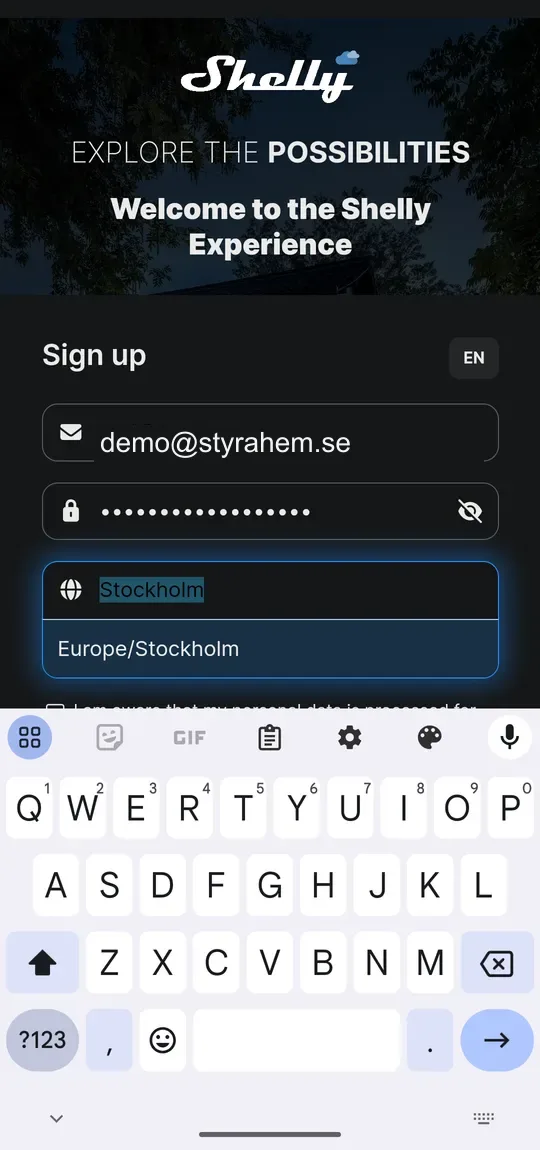
The time zone decides which of Shelly's cloud servers your account and devices end up on, and it drives when your time-based scenes run. Choose the one you actually live in.
It matters for three reasons:
- Response time. A device in Europe talking to a server in the US gets noticeably sluggish.
- Where data is stored. For EU residents, an EU time zone means the data stays within the EU.
- Changing it later isn't documented. Shelly doesn't describe anywhere how to move an account between regions, and Settings has no such option. That doesn't necessarily mean it's impossible — but expect to contact support, or to start over with a new account and add your devices again.
If you pick the wrong one, you usually won't notice straight away. It shows up as general sluggishness much later, when you have a hundred devices and no appetite for starting over.
Passwords and access
The account controls everything you've installed. A Shelly account that goes astray is someone else's remote control for your home.
- Use a unique password from your password manager.
- If you share your home with others: don't create a joint account. Use sharing instead, see Sharing devices.
On two-factor authentication: we haven't been able to confirm from official documentation that the app offers 2FA at the account level, and we don't want to claim anything either way. Open Settings → User Settings and check in your version.
Forgotten password
Use Forgot password on the login screen. The reset goes to the account's email address. If you no longer have that address, you'll need to contact Shelly support - your devices are tied to the account, not to the app.